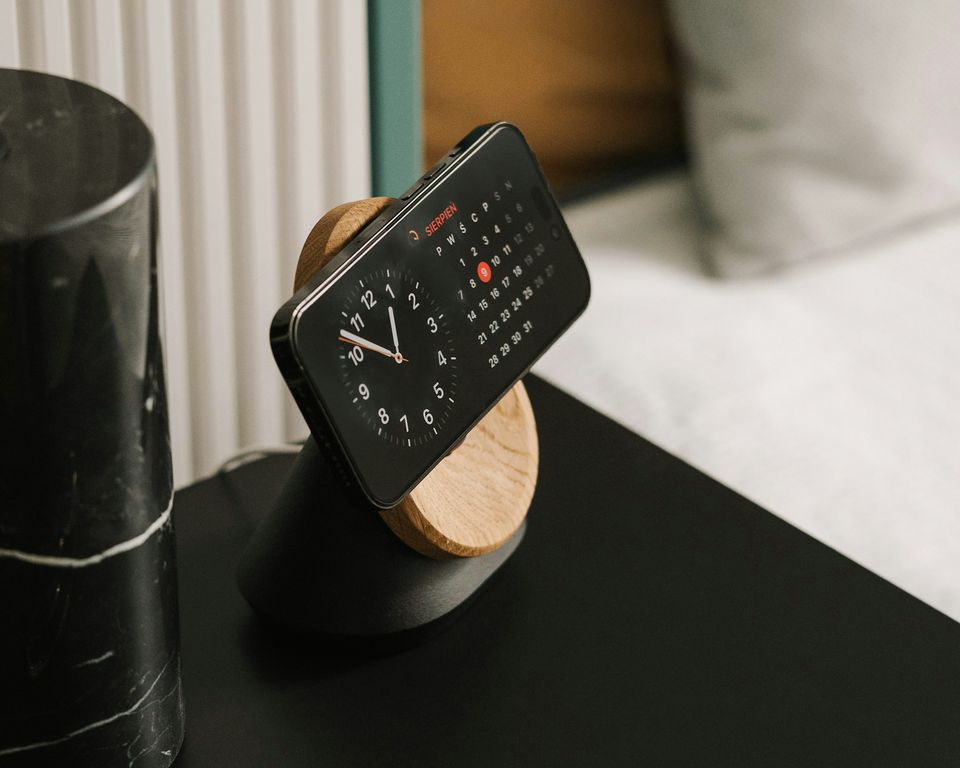
StandBy, or StandBy mode, turns your iPhone into a bedside clock, a photo frame or a full-screen display of widgets and Live Activities while it charges on its side. To start it, turn on StandBy in Settings, then, on the Lock Screen, connect your iPhone to a charger and set it down on its side. It stays on only on the 13 iPhones with an Always-On display.
This guide follows Apple’s own pages, quoted and linked, as read on 10 November 2026: the iPhone User Guide for iOS 27, whose pages describe iOS 27.2, Apple Support, Apple Newsroom and Apple’s developer documentation. It covers turning StandBy on and off, the iPhones that keep it on, Night Mode, widgets, photos and clocks, MagSafe chargers, iPhone Duo, what to check when StandBy doesn’t start, and how apps show widgets and Live Activities in it.
What is StandBy mode on iPhone?
StandBy mode, which Apple calls StandBy, is a full-screen view made to be read from a distance. Your iPhone shows it when it is locked and lying on its side, charging. Apple’s iPhone User Guide for iOS 27 introduces it in one sentence:
You can use StandBy to turn your iPhone into a bedside clock, a photo frame, a display for viewing widgets or Live Activities in full screen, and more.
Apple announced StandBy with iOS 17 on 5 June 2023, as “a new way to view glanceable information when iPhone is set down and charging”. It arrived on 18 September 2023, when iOS 17 became available “for iPhone Xs and later”, and Apple’s release article listed what it shows besides clocks, photos and widgets: “StandBy also displays full-screen Live Activities, Siri results, incoming calls, and larger notifications.”
Its settings are in Settings > StandBy, and you choose what it shows by swiping on the screen itself. Apple’s StandBy page sets two kinds of iPhone apart, both covered below: the models with an Always-On display, where StandBy stays on, and iPhone Duo, which starts it without a charger. The iOS 27 guide covers iPhone 11 and later, iPhone SE (2nd generation) and iPhone SE (3rd generation).
How do you turn on StandBy?
Turn on the StandBy switch in Settings, then connect your iPhone to a charger and set it down on its side while it shows the Lock Screen. The steps in Apple’s iOS 27 guide:
- Go to the Settings app on your iPhone.
- Tap StandBy, then make sure StandBy is turned on.
- “While on the Lock Screen, connect iPhone to a charger and set it down on its side, keeping it stationary.”
- Swipe left or right to switch between widgets, photos and clocks, and up or down to scroll through the styles of each one.
The editions of the guide for iOS 17, iOS 18 and iOS 26 give the same steps in another order: set your iPhone down on its side while it charges, then “Press the side button.” Either way, StandBy starts from the Lock Screen. On iPhone Duo, you fold the iPhone instead of charging it, as its own section explains.
Which iPhones keep StandBy always on?
StandBy stays on all the time only on the 13 iPhones with an Always-On display, from iPhone 14 Pro to iPhone Duo. On the other models, you bring it back with a tap, a nudge or Siri. Apple’s guide:
With the Always-On display (on supported models), StandBy stays on to show useful information. For all other iPhone models, it’s easy to activate StandBy any time by either tapping the screen, gently nudging the table your iPhone is on, or using Siri.
The models marked Yes are Apple’s list of models with Always-On Display for iOS 27, and the tech specs of each one list the feature:
| iPhone | Stays on |
|---|---|
| 14 Pro, 14 Pro Max | Yes |
| 15 Pro, 15 Pro Max | Yes |
| 16 Pro, 16 Pro Max | Yes |
| 17, 17 Pro, 17 Pro Max, Air | Yes |
| 18 Pro, 18 Pro Max, Duo | Yes |
| 14, 14 Plus, 15, 15 Plus | No |
| 16, 16 Plus, 16e, 17e | No |
| 13 and earlier, every SE | No |
- The list grew. The iOS 17 guide named four models: “iPhone 14 Pro, iPhone 14 Pro Max, iPhone 15 Pro, and iPhone 15 Pro Max”.
- Outside the Pro line, only iPhone 17, iPhone Air and iPhone Duo have it. iPhone 16e and iPhone 17e don’t.
- iPhone Duo has an Always-On display on both its screens, according to its tech specs.
For iPhone models other than Duo, Apple’s iOS 27 guide also lists a Display setting in Settings > StandBy, to choose when the screen turns off. It came with iOS 17.1 as “New options to control when the display turns off”, for the four Always-On models of the time, according to Apple’s iOS 17 release notes. The iOS 26 edition of the guide explains its three choices:
- “Automatically: The display turns off when iPhone isn’t in use and the room is dark.”
- “After 20 Seconds: The display turns off after 20 seconds.”
- “Never: The display stays on as long as StandBy is on.”
What is StandBy Night Mode, and how do you turn it off?
Night Mode is the StandBy setting that dims the screen and turns everything on it red in low light, so a bedside iPhone doesn’t light up your room. Apple’s iOS 27 guide: “In low light, the screen dims and shows items with a red tint so it’s not intrusive at night.” To turn it on or off:
- Go to the Settings app on your iPhone.
- Tap StandBy.
- Turn Night Mode on, or turn it off if you don’t want the red tint.
The tint covers the whole view. Apple’s iOS 17 release notes say “Night Mode lets clocks, photos, and widgets take on a red tone in low light”, and Live Activities turn red as well, as the part for app makers explains. It only shows in the dark: for widgets, Apple’s design guide says the red starts “When the ambient light falls below a threshold”.
How do you customize StandBy’s widgets, photos and clocks?
On every iPhone except Duo, StandBy has three views: widgets, photos and clocks. Swipe left or right to move between them, and up or down to change the style of the view you see. Apple’s iOS 17 release notes describe each one:
- Widgets: “Widgets give you access to information at a distance and appear in Smart Stacks that deliver the right information at the right time”. The view shows two widgets side by side, chosen from a widget gallery of its own, and Apple’s widgets guide adds: “You can perform tasks by tapping widgets on your Home Screen, Lock Screen, or StandBy.” iOS 17.2 added a Digital Clock widget, to “catch a glimpse of the time on your Home Screen and while in StandBy”.
- Photos: “Photos automatically shuffle through your best shots or showcase a specific album you choose”.
- Clocks: “Clocks are available in a variety of styles including Digital, Analog, Solar, Float, and World Clock, with elements you can personalize like the accent color”.
A MagSafe charger can keep one view for each place, as the next section explains, and iPhone Duo uses faces that you add and edit, as the one after it explains.
How does StandBy work with MagSafe?
StandBy starts on any charger, in Apple’s words “connect iPhone to a charger”, and a MagSafe charger adds one thing: StandBy remembers the view you chose on each one. Apple’s guide:
In each location where you charge iPhone with MagSafe, StandBy remembers your preferred view, whether that’s a clock, photos, or widgets. For example, you can have it set up for family photos in the kitchen or an alarm clock at your bedside.
Apple’s iOS 17 release notes call it “Preferred view per MagSafe charger”. Plug the charger in before you put your iPhone on it: Apple’s MagSafe Charger article says this “allows MagSafe to verify it’s safe to deliver maximum power.”
The iPhones that charge with MagSafe, from that article and their tech specs, are the iPhone 12, 13, 14 and 15 models; iPhone 16, 16 Plus, 16 Pro and 16 Pro Max; iPhone 17, 17 Pro, 17 Pro Max, 17e and Air; and iPhone 18 Pro, 18 Pro Max and Duo. Apple’s article puts iPhone 16e with the “non-MagSafe, Qi-compatible” models, and its tech specs list no MagSafe.
How does StandBy work on iPhone Duo?
iPhone Duo enters StandBy without a charger: on the Lock Screen, partially fold it like a book or like a tent, and set it down. Apple introduced it on 9 September 2026 as “the first foldable iPhone”. It “enters StandBy on either the outer or inner display”, and it brought new faces:
New Calendar and Weather faces join existing Clock and Modular faces, while the Photos face is updated to display Shared Albums. Every face now offers deeper customization, with new colors, fonts, and complications to choose from.
The two positions, from Apple’s Pose iPhone Duo page: like a book “so the inner display faces you in landscape”, or like a tent “so the outer display faces you in landscape”. Two settings in Settings > StandBy are for Duo only: the positions that start StandBy, each one you tap getting a checkmark, and Only While Charging, “to use StandBy in a supported position only when iPhone Duo is charging.”
To switch faces, tap the current face, then swipe left or right. To add or change one, Apple’s steps:
- Unlock your iPhone Duo, then start StandBy.
- Touch and hold a face, then tap the Add button for a new face. To change a face, swipe to it, then tap Customize.
- Choose its look with Style, Font or Color, change its widgets, and use Position to move or hide the clock. On the Photos face, tap Select to change “which photos appear or how often they shuffle”.
- Tap the Done button.
On the Modular face, you can “turn on Smart Rotate to change widgets automatically throughout the day, or turn on Widget Suggestions to see widgets based on how you use iPhone.” A face with a light and a dark version switches with the Appearance button. To delete a face, touch and hold a face, swipe to the one to delete, swipe up on it, then tap the Delete button.
Why is StandBy not working?
StandBy starts only when four conditions hold, iPhone Duo aside: the StandBy switch is on, your iPhone shows the Lock Screen, it is charging, and it lies still on its side. Check them in order, then the settings that change what you see:
- The switch. In Settings > StandBy, StandBy must be on.
- The Lock Screen. StandBy starts “While on the Lock Screen”, so lock your iPhone with the side button if an app is open.
- The charger. Except on iPhone Duo, your iPhone must be connected to a charger. On Duo, Only While Charging limits StandBy to charging, and only the positions you checked start it.
- The position. Apple’s steps say to “set it down on its side, keeping it stationary.”
- A dark screen. Without an Always-On display, that is expected: tap the screen, nudge the table or use Siri. With one, check Settings > StandBy > Display, then the Always-On display’s own limits, below.
- A red screen. That is Night Mode, in low light.
- No notifications. Turn on Show Notifications in Settings > StandBy.
- A missing widget. If an app’s widget isn’t in StandBy’s gallery, the app may have no small widget, the only size StandBy uses, or its maker may have kept the widget’s background, which keeps it out of StandBy, as the part for app makers explains.
Apple lists when the Always-On display turns itself off, on its page about keeping the display on:
The display automatically turns off when iPhone is either face down or obstructed from view, not near a paired Apple Watch, when a CarPlay session begins, while Continuity Camera is in use, while Low Power Mode is on, while Sleep Focus is on, or at your usual bedtime.
Two of them concern sleep: Sleep Focus and your usual bedtime. Our Focus guide explains how a Focus turns on by schedule.
How do you turn off StandBy?
Open Settings, tap StandBy, then tap the StandBy switch. In Apple’s words: “Turn StandBy on or off: Tap the StandBy switch.” Apple’s guide also gives a voice command, in its section on starting StandBy: “Activate Siri, then tell Siri to turn StandBy on or off.”
The same screen holds every StandBy setting, so you can also keep StandBy and change only what bothers you. The settings in Apple’s iOS 27 guide:
| Setting | Effect |
|---|---|
| StandBy | StandBy on or off |
| Night Mode | Dim, red screen in low light |
| Show Notifications | Notifications in StandBy |
| Show Preview on Tap Only | Details hidden until you tap |
| Display | When the screen turns off |
| Only While Charging | Duo: StandBy only on a charger |
Show Preview on Tap Only works with Show Notifications: Apple’s guide says to turn it on as well “To keep details hidden until you tap”. How notifications reach your iPhone in the first place is in our push notifications guide.
How do you make a widget for StandBy?
StandBy shows your app’s small widget, scaled up and without its background, so a widget made for StandBy is a small widget whose background can be removed and whose content reads from a distance. Apple’s WidgetKit article describes the layout:
The Lock Screen shows two widgets side by side on a dark background. WidgetKit uses your WidgetFamily.systemSmall widget and scales it to fit half of the screen.
“People can choose your small system family widgets from the widget gallery in StandBy or CarPlay”, and the article asks for three changes to that widget:
- “Make the background removable.”
- “Focus on showing only glanceable information.”
- “Use larger typography, and make it easy to read from a distance.”
The same work covers CarPlay, since “when you ensure your widget supports one, it automatically supports the other.”
The background. “In StandBy on iPhone, the system removes the background of your widget.” Apple’s background article tells you to move any background color or views inside the containerBackground(for:) modifier, with widget as its placement, so WidgetKit removes them where needed. The showsWidgetContainerBackground environment value tells your views whether the background shows. You can keep the background with containerBackgroundRemovable(false), which Apple suggests for a widget whose photo or map fills it entirely, at a cost:
Marking a background as nonremovable excludes your widget from the widget gallery in contexts that require a removable background; for example, on the iPad Lock Screen and in StandBy.
While a widget does neither, Xcode overlays a warning on it during development.
Night Mode. In Night Mode, StandBy redraws widgets in the vibrant rendering mode, tinted red:
The system uses the vibrant rendering mode for widgets on the Lock Screen of iPhone and iPad, and on iPhone in StandBy in low-light conditions. It desaturates text, images, and gauges, and creates a vibrant effect by coloring your content appropriately for the Lock Screen background or a macOS desktop.
| When | Mode | Look |
|---|---|---|
| Usual | fullColor | No background, scaled up |
| Night Mode | vibrant | Monochrome, red tint |
WidgetKit’s article on contexts confirms it: “WidgetKit uses a red tint for widgets that appear on iPhone in StandBy in low-light conditions.” Read the widgetRenderingMode environment value to adapt your views to each mode, and follow Apple’s design rule: “Limit usage of rich images or color to convey meaning in StandBy.” Use the space for larger text instead.
- When StandBy is a poor fit,
disfavoredLocations(_:for:)with the standBy location, from iOS 17, moves your widget to the Other section of the gallery there. Apple: “Doing so doesn’t exclude your widget from CarPlay or StandBy, but it communicates to people that these locations aren’t the best fit.” - Interactive widgets work there. Since iOS 17, people can act on a widget by tapping it “on the Home Screen, Lock Screen, or in StandBy”.
- Test it in Xcode. Apple’s preview article suggests viewing a small widget on the preview canvas “in light mode, dark mode, in StandBy, in NightMode, and on the iPad Lock Screen.”
If you are new to Apple’s tools, our guide on how to make an app starts with Xcode.
How do Live Activities appear in StandBy?
A Live Activity shows in StandBy in its minimal presentation, at the top of the screen, and a tap opens its Lock Screen presentation “scaled up by 2x to fill the screen”, in the words of Apple’s design guidelines. If that presentation has a custom background color, the system extends it to the whole screen, though Apple suggests considering the default one, which blends with the bezel and lets the system draw the Live Activity slightly larger. ActivityKit’s article asks you to “Make sure your assets offer a high-enough resolution for StandBy”, and gives the test for a layout of your own: “To detect Standby, use the isActivityFullscreen environment variable.” In Night Mode, “the system applies a red tint to your Live Activity”, so check its contrast in red. Our Live Activities guide covers the rest, from ActivityKit to the eight-hour limit, and the Dynamic Island guide covers the Dynamic Island, where the minimal presentation also appears.
What to do
- Turn StandBy on in Settings > StandBy, then charge your iPhone on its side, on the Lock Screen, and leave it still.
- Choose a view for each room. With MagSafe chargers, StandBy remembers a clock by the bed and photos in the kitchen.
- Keep it on all night on an Always-On model by setting Display to Never, or let Automatically turn it off in the dark.
- Turn on Night Mode for a dim, red screen at night, or turn it off if the red bothers you.
- When it doesn’t start, check the switch, the Lock Screen, the charger and the position, then Low Power Mode and Sleep Focus.
- Turn it off with the StandBy switch, or keep it and hide notification details with Show Preview on Tap Only.
- App makers: make your small widget’s background removable, use larger text, and test it in StandBy and Night Mode in Xcode’s previews.
- Check your Live Activity at full screen, at 2x, and in red.
- Check where your app ranks for the searches that should lead to it: ASO Gauge’s free rank checker runs one real App Store search, in any of 175 countries.
Sources
- Apple, iPhone User Guide for iOS 27, Use StandBy on iPhone to view information at a distance: starting StandBy, the Always-On display, MagSafe, the settings, Night Mode, iPhone Duo’s faces.
- Apple, iPhone User Guide for iOS 26, Use StandBy to view information at a distance while iPhone is charging: the three Display choices, the side button step.
- Apple, iPhone User Guide for iOS 17, Use StandBy to view information at a distance while iPhone is charging: the first four Always-On models.
- Apple, iPhone User Guide, Models with Always-On Display: the 13 models.
- Apple, iPhone User Guide, Keep the iPhone display on longer: when the Always-On display turns off.
- Apple, iPhone User Guide, iPhone models compatible with iOS 27: iOS 27.2 and the models it covers.
- Apple, iPhone User Guide, Add, edit, and remove widgets on iPhone: tapping widgets in StandBy.
- Apple, iPhone User Guide, Pose iPhone Duo: the book and tent positions.
- Apple, Apple Support, About iOS 17 Updates: StandBy’s views, Night Mode, MagSafe, the iOS 17.1 display options and the iOS 17.2 Digital Clock widget.
- Apple, Apple Support, How to use your MagSafe Charger with iPhone: the MagSafe models, plugging in first.
- Apple, Apple Support, Tech Specs: iPhone 14 Pro, iPhone 14 Pro Max, iPhone 15 Pro, iPhone 15 Pro Max, iPhone 16 Pro, iPhone 16 Pro Max, iPhone 17, iPhone 17 Pro, iPhone 17 Pro Max, iPhone Air, iPhone 18 Pro, iPhone 18 Pro Max, iPhone Duo: the Always-On display; iPhone 16e and iPhone 17e: MagSafe or not.
- Apple, Newsroom, iOS 17 makes iPhone more personal and intuitive: the announcement, 5 June 2023.
- Apple, Newsroom, iOS 17 is available today: the release, 18 September 2023, and what StandBy shows.
- Apple, Newsroom, Apple unveils iPhone Duo: StandBy on iPhone Duo, 9 September 2026.
- Apple, Apple Developer, Adding StandBy and CarPlay support to your widget: the small widget, the three changes, disfavored locations.
- Apple, Apple Developer, Displaying the right widget background: background removal and opting out.
- Apple, Apple Developer, Preparing widgets for additional platforms, contexts, and appearances: rendering modes and the red tint.
- Apple, Apple Developer, standBy: the StandBy widget location.
- Apple, Apple Developer, Previewing widgets and Live Activities in Xcode: previews in StandBy and Night Mode.
- Apple, Apple Developer, Displaying live data with Live Activities: Live Activities in StandBy, isActivityFullscreen.
- Apple, Human Interface Guidelines, Widgets: StandBy’s rendering, the red tint, design rules.
- Apple, Human Interface Guidelines, Live Activities: the StandBy presentation and Night Mode.
Checked on 10 November 2026.